


On this page
- The short answer
- The starting point
- Merge: keep the history exactly as it happened
- Rebase: replay your commits on top of main
- Fast-forward vs --no-ff, when nothing has diverged
- Keeping a feature branch up to date
- Conflicts: where the two really differ
- Merge: one conflict
- Rebase: a conflict for each commit that collides
- Cutting down repeated conflicts: squash first
- Bailing out of either one
- Rebase refuses to run on a dirty working tree
- The golden rule: don't rewrite commits other people have
- Always --force-with-lease, never --force
- Squash merge: one commit per branch
- Rebasing a branch that contains merges
- Undoing each one
- What git pull does: pick a default
- Which should you use?
- Common mistakes
- Alternatives to both
- Related Dev Talk articles and tools
- Sources
Last updated: 9 November 2026. See the update log at the end.
You branched off main, did some work, and now main has moved on. Git offers two ways to bring the branches back together, git merge and git rebase, and both end with the same files on disk. What differs is the history you leave behind, how many conflicts you resolve, and what happens to your teammates if the branch is shared. Pick wrongly and you get either a tangle of merge commits or a force-push that wrecks someone's afternoon.
This article runs both on the same repository, side by side, with the real commands and output, then covers the situations where the choice matters: conflicts, shared branches, squash merges, pulling, and undoing a mistake. All of it was run on Git 2.43.0.
The short answer
| Merge | Rebase | |
|---|---|---|
| What it does | Adds one new commit with two parents that joins the histories | Replays your commits one by one on top of the new base, creating new commits |
| History afterwards | Branches and joins stay visible | One straight line |
| Your existing commits | Untouched, same SHAs | Replaced, new SHAs |
| Conflicts | Resolved once, in the merge commit | Can appear once per replayed commit |
| Safe on a branch others use | Yes | No, unless everyone agrees |
| Undo | reset before pushing; revert -m 1 after | reset --hard ORIG_HEAD or the reflog |
My rule of thumb, as a practical recommendation rather than a law: rebase your own unpublished work to keep it tidy, merge anything that other people already have. The sections below show why.
The starting point
A small repository. main has two commits. feature/search was branched from the second one and has two commits of its own. Meanwhile someone added a third commit to main, so the histories have diverged:
git log --oneline --graph --decorate --all* cb7fefb (HEAD -> main) Update README
| * ad97d89 (feature/search) Add search filters
| * 1625bc4 Add search index
|/
* 61382cb Add app skeleton
* db814b5 Initial commitMerge: keep the history exactly as it happened
git switch main
git merge feature/search
Merge made by the 'ort' strategy.
search.txt | 2 ++
1 file changed, 2 insertions(+)
create mode 100644 search.txt* a3e6b0f (HEAD -> main) Merge branch 'feature/search'
|\
| * ad97d89 (feature/search) Add search filters
| * 1625bc4 Add search index
* | cb7fefb Update README
|/
* 61382cb Add app skeleton
* db814b5 Initial commitNothing was rewritten. ad97d89 and 1625bc4 kept their SHAs, and a new merge commit a3e6b0f records that the two lines of work joined. The graph is honest, but it gets busy on a team that merges many branches a day. One tool helps: --first-parent follows only the main line and hides the commits inside each merged branch:
git log --oneline --first-parenta3e6b0f Merge branch 'feature/search'
cb7fefb Update README
61382cb Add app skeleton
db814b5 Initial commitThat gives you a readable "one line per feature" view of main without rewriting anything.
Rebase: replay your commits on top of main
Same starting point, different command. Run it on the feature branch:
git switch feature/search
git rebase main
Successfully rebased and updated refs/heads/feature/search.(While it works, Git also prints a progress line such as Rebasing (2/2).) Compare the two commits before and after:
before:                  after:
ad97d89 Add search filters       cb365e1 Add search filters
1625bc4 Add search index         9a325d7 Add search index
* cb365e1 (HEAD -> feature/search) Add search filters
* 9a325d7 Add search index
* cb7fefb (main) Update README
* 61382cb Add app skeleton
* db814b5 Initial commitThe commit messages and changes are the same, but the SHAs are different. A commit's SHA includes its parent, and the parent changed, so Git created new commits and moved the branch label to them. The old commits still exist (more on that in the undo section). The history is now a single line, and merging into main becomes a fast-forward with no merge commit:
git switch main
git merge feature/search
Updating cb7fefb..cb365e1
Fast-forward
search.txt | 2 ++
1 file changed, 2 insertions(+)
create mode 100644 search.txtIf you want Git to refuse anything that is not a clean fast-forward, add --ff-only. On the diverged branches from the start of this article it stops and tells you what to do:
$ git merge --ff-only feature/search
hint: Diverging branches can't be fast-forwarded, you need to either:
hint:
hint: 	git merge --no-ff
hint:
hint: or:
hint:
hint: 	git rebase
hint:
hint: Disable this message with "git config advice.diverging false"
fatal: Not possible to fast-forward, aborting.
Fast-forward vs --no-ff, when nothing has diverged
If main has not moved, a merge does not need a merge commit. Git just slides the branch pointer forward:
$ git merge feature/login
Updating 61382cb..e6c3f9a
Fast-forward
 login.txt | 2 ++
 1 file changed, 2 insertions(+)
 create mode 100644 login.txt

* e6c3f9a (HEAD -> main, feature/login) Add login validation
* 0745ccd Add login form
* 61382cb Add app skeleton
* db814b5 Initial commit
The result is linear, and afterwards nobody can tell a branch ever existed. If you want to keep a visible record of the feature as a unit, force a merge commit with --no-ff:
$ git merge --no-ff -m "Merge feature/login" feature/login
Merge made by the 'ort' strategy.

*   767bc44 (HEAD -> main) Merge feature/login
|\
| * e6c3f9a (feature/login) Add login validation
| * 0745ccd Add login form
|/
* 61382cb Add app skeleton
* db814b5 Initial commit
Keeping a feature branch up to date
The most common daily use: main moved, and you want its changes in your branch. Merging main into the feature branch works, but adds a merge commit every time you do it:
$ git merge main
Merge made by the 'ort' strategy.

*   eeec354 (HEAD -> feature/search) Merge branch 'main' into feature/search
|\
| * cb7fefb (main) Update README
* | ad97d89 Add search filters
* | 1625bc4 Add search index
|/
* 61382cb Add app skeleton
* db814b5 Initial commit
Rebasing onto main instead (as in the earlier section) keeps the branch a clean series of commits on top of the latest main, which makes the pull request easier to review. The cost is that you must not do it once other people have based work on your branch.
Conflicts: where the two really differ
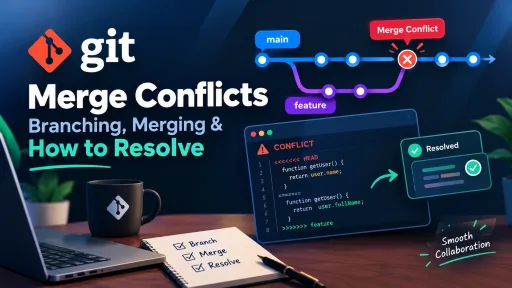
A merge brings both branches together in one step, so you resolve each conflicting area once. A rebase replays your commits one at a time, so if several of your commits touch the same lines, you may resolve them repeatedly. I set up a conflict deliberately: main changed timeout=30 to timeout=60, while the feature branch has two commits, the first setting it to 45 and the second setting 50 and adding a retries line.
* e62c282 (HEAD -> main) Raise timeout to 60
| * 91af4b7 (feature/timeout) Tune timeout and add retries
| * cba3fc7 Tune timeout for slow API
|/
* 1b8f2a7 Initial commit
Merge: one conflict
$ git merge feature/timeout
Auto-merging config.txt
CONFLICT (content): Merge conflict in config.txt
Automatic merge failed; fix conflicts and then commit the result.

$ cat config.txt
<<<<<<< HEAD
timeout=60
=======
timeout=50
retries=3
>>>>>>> feature/timeout

$ git status --short
UU config.txt
I resolved it to timeout=60 plus retries=3, committed, and was done: one resolution, and the graph shows the join.
*   82da93a (HEAD -> main) Merge branch 'feature/timeout'
|\
| * 91af4b7 (feature/timeout) Tune timeout and add retries
| * cba3fc7 Tune timeout for slow API
* | e62c282 Raise timeout to 60
|/
* 1b8f2a7 Initial commit
Rebase: a conflict for each commit that collides
$ git rebase main
Auto-merging config.txt
CONFLICT (content): Merge conflict in config.txt
error: could not apply cba3fc7... Tune timeout for slow API
Could not apply cba3fc7... Tune timeout for slow API

$ cat config.txt
<<<<<<< HEAD
timeout=60
=======
timeout=45
>>>>>>> cba3fc7 (Tune timeout for slow API)
(I trimmed Git's hint: lines throughout.) Here HEAD is the new base, main, and the other side is the single commit being replayed. I resolved it to timeout=60, ran git add config.txt and git rebase --continue, and Git moved on to the second commit, which collided as well:
$ git rebase --continue
Auto-merging config.txt
CONFLICT (content): Merge conflict in config.txt
error: could not apply 91af4b7... Tune timeout and add retries
Could not apply 91af4b7... Tune timeout and add retries

$ cat config.txt
<<<<<<< HEAD
timeout=60
=======
timeout=50
retries=3
>>>>>>> 91af4b7 (Tune timeout and add retries)
Second resolution: timeout=60 plus retries=3, then git rebase --continue:
[detached HEAD 8fc3ae3] Tune timeout and add retries
 1 file changed, 1 insertion(+)
Successfully rebased and updated refs/heads/feature/timeout.

* 8fc3ae3 (HEAD -> feature/timeout) Tune timeout and add retries
* e62c282 (main) Raise timeout to 60
* 1b8f2a7 Initial commit
Two things to notice. First, the two conflicts: the merge asked once, the rebase asked twice. Second, the branch ended with one commit, not two. My first resolution (timeout=60) matched what main already had, so the first commit became empty and Git dropped it without a message. That is correct behavior, but it surprises people who expect every commit to survive.
Cutting down repeated conflicts: squash first
If your branch has several small commits that keep colliding, squash them into one before rebasing, so you resolve once. This does throw away the individual commit history, which is the trade-off:
git reset --soft $(git merge-base main feature/timeout)
git commit -m "Tune timeout and add retries"
git rebase main
* d3d35ff (HEAD -> feature/timeout) Tune timeout and add retries
| * e62c282 (main) Raise timeout to 60
|/
* 1b8f2a7 Initial commit
Auto-merging config.txt
CONFLICT (content): Merge conflict in config.txt
error: could not apply d3d35ff... Tune timeout and add retriesOne commit, one conflict. For picking which commits to combine more precisely, use git rebase -i (covered in the rebase part of this Git series).
Bailing out of either one
git merge --abort
git rebase --abort
Both put the branch back as it was before you started. After git rebase --abort in my test the status was nothing to commit, working tree clean and the graph showed the original 91af4b7 and cba3fc7 commits again.
Rebase refuses to run on a dirty working tree
$ git rebase main
error: cannot rebase: You have unstaged changes.
error: Please commit or stash them.

$ git rebase --autostash main
Created autostash: 44ed3df
Applied autostash.
Successfully rebased and updated refs/heads/feature/search.
--autostash stashes your uncommitted changes, rebases, and reapplies them. If the reapply conflicts, Git keeps the stash for you. For the manual version, see the stash part of this series.
The golden rule: don't rewrite commits other people have
Rebase creates new commits to replace old ones. On your own local branch that is harmless. On a branch that a teammate has already pulled, it leaves their copy of the old commits stranded. I simulated that with a bare remote and two clones. Alice and Bob both have feature/search. Alice rebases it onto an updated main and tries to push:
$ git push
 ! [rejected]        feature/search -> feature/search (non-fast-forward)
error: failed to push some refs to '…'
hint: Updates were rejected because the tip of your current branch is behind

$ git push --force-with-lease
 + 871afc9...731f5a1 feature/search -> feature/search (forced update)
(I replaced the repository path with ….) The plain push is rejected because the rewritten branch is no longer a descendant of what is on the remote. --force-with-lease overwrites it. Bob still has the old commits and adds one of his own:
* 6db2161 (HEAD -> feature/search) Add search sorting
* 871afc9 (origin/feature/search) Add search filters
* 7ed4e8b Add search index
* db814b5 (origin/main, origin/HEAD, main) Initial commit
Now Bob runs a plain merge-style pull, and gets a conflict in a file he never touched:
$ git pull --no-rebase
Auto-merging search.txt
CONFLICT (add/add): Merge conflict in search.txt
Automatic merge failed; fix conflicts and then commit the result.

$ git status --short
M  README.md
AA search.txt
The AA means both sides added search.txt: Alice's rewritten commits created it, and so did Bob's old ones, as unrelated commits to Git. After git merge --abort, Bob can recover with git pull --rebase:
$ git pull --rebase
Successfully rebased and updated refs/heads/feature/search.

* 5474049 (HEAD -> feature/search) Add search sorting
* 731f5a1 (origin/feature/search) Add search filters
* 769bcce Add search index
* bf92bdd (origin/main, origin/HEAD) Update README
* db814b5 (main) Initial commit
Here Git recognized that Bob's two old commits were already upstream in rewritten form and dropped them, keeping only Add search sorting. That worked because Alice's rebase did not change the contents of her commits. If she had also edited or conflict-resolved them, the recovery would be harder. Do not rely on it as a plan.
Always --force-with-lease, never --force
In a second run, Alice rebased locally, then Bob pushed a new commit to the same branch before Alice pushed. Alice had not fetched his commit:
$ git push --force-with-lease
 ! [rejected]        feature/search -> feature/search (stale info)

$ git push --force
 + 811a4ba...3265a02 feature/search -> feature/search (forced update)

$ git log --oneline feature/search      # on the remote, afterwards
3265a02 Add search index
36bce11 Update README
d8f1998 Initial commit
The lease refused, because the remote had moved since Alice last looked ("stale info"). The plain force overwrote it, and Bob's commit Add search sorting is gone from the remote. The lease costs nothing, and it is the difference between an annoying rejection and lost work. The rebase part of the series covers pushing after a rebase in more depth.
Squash merge: one commit per branch
Many teams squash a branch into a single commit when merging a pull request. Locally that is git merge --squash:
$ git merge --squash feature/search
Automatic merge went well; stopped before committing as requested
Squash commit -- not updating HEAD

$ git commit -m "Add search (squashed)"

* ad97d89 (feature/search) Add search filters
* 1625bc4 Add search index
| * 902732e (HEAD -> main) Add search (squashed)
| * cb7fefb Update README
|/
* 61382cb Add app skeleton
* db814b5 Initial commit
The result on main is one new commit, and the feature branch is not connected to it in the graph. That has a practical consequence, because Git no longer knows the branch was merged:
$ git branch --merged main
* main

$ git branch -d feature/search
error: the branch 'feature/search' is not fully merged.
If you are sure you want to delete it, run 'git branch -D feature/search'
Only delete such a branch with -D after checking that the squash commit contains everything. Also avoid continuing work on a branch after it has been squash-merged, since its old commits will conflict with the squashed copy. The GitHub documentation says the same: "Squash merging works best for short-lived branches."
GitHub's pull request button offers all three strategies from this article, as documented: create a merge commit (a --no-ff merge that keeps all the branch's commits), squash and merge, and rebase and merge. For rebase and merge, GitHub's page states that it "always updates the committer information and creates new commit SHAs", so commits on main will not match the SHAs on your local branch. I did not test GitHub itself.
Rebasing a branch that contains merges
A plain git rebase flattens merge commits. Here feature/cart contains a merge of a smaller branch (feature/cart-coupons), and main has moved on:
*   4892d20 (HEAD -> feature/cart) Merge coupons into cart
|\
| * b575b69 (feature/cart-coupons) Add coupon codes
* | c934647 Add cart total
|/
* 31aa099 Add cart list
* db814b5 Initial commit
$ git rebase main
Successfully rebased and updated refs/heads/feature/cart.
* ff2d7ef (HEAD -> feature/cart) Add coupon codes
* 6a3df45 Add cart total
* 5b818cf Add cart list
* c5906fe (main) Update README
* db814b5 Initial commitThe merge commit disappeared and the structure of the work was flattened. If you want to keep it, use --rebase-merges:
$ git rebase --rebase-merges main
Successfully rebased and updated refs/heads/feature/cart.

*   8a9845e (HEAD -> feature/cart) Merge coupons into cart
|\
| * 1dd0e01 Add coupon codes
* | 6a3df45 Add cart total
|/
* 5b818cf Add cart list
* c5906fe (main) Update README
* db814b5 Initial commit
Note that feature/cart-coupons itself still points at its old commit in both cases; a rebase moves only the branch you are on.
Undoing each one
A merge you have not pushed. Git saves the previous tip as ORIG_HEAD:
$ git reset --hard ORIG_HEAD
HEAD is now at cb7fefb Update README
A rebase you have not pushed. Same trick, and the old commits come back with their old SHAs:
before:        ad97d89 Add search filters / 1625bc4 Add search index
after rebase: 6976b4e Add search filters / f18a57b Add search index

$ git reset --hard ORIG_HEAD
HEAD is now at ad97d89 Add search filters
(The rebased SHAs differ from the earlier rebase example because this was a separate test run; the point is that they change.) ORIG_HEAD is overwritten by the next merge, reset or rebase, so if you have done anything since, use git reflog. The undo part of the series covers that.
A merge that is already pushed. You cannot rewrite shared history, so you add a commit that reverses it. A merge commit has two parents, so you must tell Git which side to keep with -m 1 (the first parent, normally main):
$ git revert -m 1 HEAD
[main 1b63300] Revert "Merge branch 'feature/search'"
 Date: Thu Jan 1 00:01:00 2026 +0000
 1 file changed, 2 deletions(-)
$ ls
README.md
app.txt
The feature's changes are gone from the working tree. Now the trap: when the fixed branch is ready and you merge it again, Git thinks it is already merged.
$ git merge feature/search
Already up to date.
The original merge still counts as having included those commits. To get the changes back, revert the revert:
$ git revert --no-edit 1b63300
[main f224762] Reapply "Merge branch 'feature/search'"
 Date: Thu Jan 1 00:02:00 2026 +0000
$ ls
README.md
app.txt
search.txt
Or merge a new branch that includes your fixes as new commits on top of the old ones. Either way, know about this behavior before the day you need it.
What git pull does: pick a default
git pull is a fetch followed by a merge or a rebase, and Git 2.43 will not pick for you when the branches have diverged:
$ git pull
hint: You have divergent branches and need to specify how to reconcile them.
hint: You can do so by running one of the following commands sometime before
hint: your next pull:
hint:
hint:   git config pull.rebase false  # merge
hint:   git config pull.rebase true   # rebase
hint:   git config pull.ff only       # fast-forward only
fatal: Need to specify how to reconcile divergent branches.
$ git pull --ff-only
fatal: Not possible to fast-forward, aborting.
$ git pull --rebase
Successfully rebased and updated refs/heads/main.
* 47f354b (HEAD -> main) Bob: add notes
* ddd4bcf (origin/main, origin/HEAD) Alice: add app
* db814b5 Initial commitSet one default and stop thinking about it. pull.rebase true keeps your local, unpushed commits on top of the remote ones, which is safe because those are the only commits being rewritten. pull.ff only makes a diverged pull stop and ask, which is the most cautious. Use git config --global to apply either to every repository.
Which should you use?
| Situation | Use | Why |
|---|---|---|
Your own unpushed branch is behind main | Rebase | Clean history, nobody affected |
| A branch you pushed, only you use it | Rebase, then --force-with-lease | Safe if you are the only one; the lease checks it |
| A branch shared with teammates | Merge | Rewriting strands their copies |
main, develop, release branches | Merge, never rebase | Everyone builds on them |
Finished feature into main, you want context | Merge commit (--no-ff) | One visible unit per feature, easy revert -m 1 |
| Finished feature, many noisy commits | Squash | One tidy commit per pull request |
| Finished feature, you want a straight line with every commit | Rebase and fast-forward | Linear history, each commit stays |
| You need to undo a pushed integration | revert | Never rewrite published history |
A workflow that works for many teams, again as a recommendation: rebase locally while you work, open the pull request, let the team's chosen merge strategy (merge commit or squash) land it on main, and never rebase a branch after someone else has pulled it. What matters more than the choice is that everyone on the team uses the same one.
Common mistakes
- Rebasing a branch other people have pulled. It strands their commits and creates confusing conflicts like the
add/addabove. - Using
git push --force. Use--force-with-lease. In my test the plain force deleted a teammate's commit from the remote. - Rebasing
mainonto a feature branch. The direction matters: rebase the feature ontomain, never the other way around. - Panicking when commits seem to vanish after a rebase. They are still there; use
ORIG_HEADorgit reflog. - Resolving the same conflict repeatedly. Squash first, or consider merging instead.
- Deleting a squash-merged branch with
-Dwithout checking. Git cannot tell it was merged. - Merging again after
revert -m 1and getting "Already up to date". Revert the revert instead. - Ignoring the
pulldefault. Setpull.rebaseorpull.ffonce.
Alternatives to both
git cherry-pickto copy specific commits without merging the whole branch (see the stash and cherry-pick part).git rebase -ito reorder, edit and squash your commits before you share them.git merge --squashwhen you want the changes but a single commit.
Related Dev Talk articles and tools
- Git merge conflicts: branching, merging and how to resolve them
- Git rebase explained: rewrite history without breaking it
- Git undo commit: reset, revert and reflog recovery
- Git daily workflow: staging, commits and .gitignore
Tools: git log --oneline --graph --decorate --all shows exactly what these examples show, and git reflog is the safety net. A graphical client can draw the same graph; I did not use one here.
Sources
- GitHub Docs: Pull request merges (merge commit, squash and merge, rebase and merge)
Free resources for this topic
Get one practical tip every week
New tutorials, fixes and free cheat sheets from DEV Talk, straight to your inbox. No spam, unsubscribe in one click.
Free download: Git cheat sheet (PDF)
Have a question about this post?
Ask the community: other developers and the author can answer.
Get notified about new articles
One click, no email needed. Turn it off anytime with the bell at the top.
Get new articles on your iPhone
Add DEV Talk to your Home Screen, open it, then tap the bell.
Enjoying the content?
If this article helped you, you can support the author with a coffee. It keeps new posts coming.


Comments 0
No comments yet
Be the first to share your thoughts.