The Git commands you actually use, grouped by task. Type in the filter to find one, click to copy, or grab the printable PDF.
90 commands
Updated October 2026
matchingPress / to filter
Setup & config
git config --global user.name "Your Name"
Set the name recorded on your commits
git config --global user.email "you@example.com"
Set the email recorded on your commits
git config --global init.defaultBranch main
Name the first branch of new repositories main
git config --global core.editor "code --wait"
Use VS Code for commit messages
git config --global pull.rebase true
Rebase instead of merge on git pull
git config --global core.autocrlf input
Convert CRLF to LF on commit (macOS/Linux; use true on Windows)
git config --global alias.st status
Create a shortcut: git st = git status
git config --list --show-origin
Show all settings and the file each comes from
Start a repository
git init
Turn the current folder into a Git repository
git clone <url>
Copy a remote repository into a new folder
git clone <url><folder>
Clone into a folder with a different name
git clone --depth 1 <url>
Clone only the latest commit (fast, small)
git clone -b <branch><url>
Clone and check out a specific branch
Stage & commit
git status
Show changed, staged and untracked files
git status -s
Short, one-line-per-file status
git add <file>
Stage a file for the next commit
git add .
Stage all changes in the current folder
git add -p
Stage changes hunk by hunk, interactively
git commit -m "message"
Commit the staged changes
git commit -am "message"
Stage all tracked files and commit in one step
git commit --amend
Change the last commit (message or staged files)
git commit --amend --no-edit
Add staged changes to the last commit, keep its message
git rm <file>
Delete a file and stage the deletion
git rm --cached <file>
Stop tracking a file but keep it on disk
git mv <old><new>
Rename or move a file and stage it
Inspect changes
git diff
Unstaged changes in the working tree
git diff --staged
Staged changes (what the next commit contains)
git diff <branch-a>..<branch-b>
Differences between two branches
git diff --stat
Summary of changed files and line counts
git show <commit>
Show a commit's message and changes
git blame <file>
Who last changed each line, and in which commit
Branches
git branch
List local branches (* marks the current one)
git branch -a
List local and remote-tracking branches
git switch <branch>
Switch to a branch
git switch -c <branch>
Create a branch and switch to it
git checkout -b <branch>
Create and switch (older syntax)
git branch -m <new-name>
Rename the current branch
git branch -d <branch>
Delete a branch that has been merged
git branch -D <branch>
Force-delete a branch, merged or not
git branch --merged
List branches already merged into the current one
Merge & rebase
git merge <branch>
Merge a branch into the current branch
git merge --no-ff <branch>
Merge and always create a merge commit
git merge --squash <branch>
Combine a branch's changes into one staged change
git merge --abort
Cancel a merge that has conflicts
git rebase <branch>
Replay your commits on top of another branch
git rebase -i HEAD~3
Edit, squash, reorder or drop the last 3 commits
git rebase --continue
Continue after fixing a rebase conflict
git rebase --abort
Cancel the rebase and go back to where you started
git cherry-pick <commit>
Apply one commit from another branch here
Remotes: push & pull
git remote -v
List remotes and their URLs
git remote add origin <url>
Connect the repository to a remote
git remote set-url origin <url>
Change a remote's URL
git fetch
Download new commits without changing your files
git fetch --prune
Fetch and remove branches deleted on the remote
git pull
Fetch and integrate the remote branch
git push
Upload your commits to the tracked remote branch
git push -u origin <branch>
Push a new branch and set it to track the remote
git push --force-with-lease
Force-push, but only if nobody pushed in the meantime
git push origin --delete <branch>
Delete a branch on the remote
Undo mistakes
git restore <file>
Discard unstaged changes to a file
git restore --staged <file>
Unstage a file, keep the changes
git restore --source=<commit><file>
Restore a file as it was in a commit
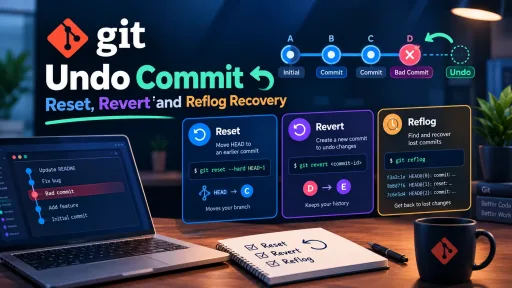
git reset --soft HEAD~1
Undo the last commit, keep its changes staged
git reset HEAD~1
Undo the last commit, keep its changes unstaged
git reset --hard HEAD~1
Undo the last commit and delete its changes (careful)
git reset --hard origin/main
Make the branch exactly match the remote (careful)
git revert <commit>
Create a new commit that undoes an old one (safe on shared branches)
git clean -n
Preview which untracked files would be deleted
git clean -fd
Delete untracked files and folders
git reflog
Every position HEAD has been in: find "lost" commits
Stash
git stash
Put uncommitted changes aside
git stash -u
Stash including untracked files
git stash push -m "message"
Stash with a description
git stash list
List stashes
git stash pop
Re-apply the latest stash and remove it
git stash apply stash@{1}
Re-apply a specific stash and keep it
git stash drop stash@{1}
Delete a specific stash
History
git log
Commit history of the current branch
git log --oneline --graph --all
Compact history of all branches as a graph
git log -p <file>
History of a file with the changes
git log --author="Name"
Commits by one author
git log --since="2 weeks ago"
Commits from the last two weeks
git log -S "text"
Commits that added or removed a piece of text
git shortlog -sn
Number of commits per author
git bisect start
Binary-search the history for the commit that broke something
Tags & releases
git tag
List tags
git tag -a v1.0.0 -m "Release 1.0.0"
Create an annotated tag on the current commit
git push origin v1.0.0
Push one tag to the remote
git push --tags
Push all tags
git tag -d v1.0.0
Delete a local tag
No command matches “”.
Keep it next to your keyboard
All 90 commands on a printable A4 PDF. Free for newsletter subscribers.
Frequently asked questions
What is the difference between git fetch and git pull?
git fetch only downloads new commits from the remote; your branch and files stay as they are. git pull runs a fetch and then merges (or rebases) the remote branch into yours.
How do I undo the last commit but keep my changes?
Run git reset --soft HEAD~1. The commit is removed and its changes stay staged, ready to commit again. If you already pushed it to a shared branch, use git revert instead.
Should I use merge or rebase?
Merge keeps the history exactly as it happened and is safe on shared branches. Rebase gives a cleaner, linear history; use it for your own local branches before you share them, never on commits other people already pulled.
How do I recover a deleted branch or a commit lost after reset --hard?
Run git reflog, find the commit hash from before the mistake, then git switch -c <branch> <hash> to bring it back.